Lightspeed Cloud gives you three kinds of storage: block storage volumes attached to VMs, network-mounted shared filesystems for sharing data across multiple VMs, and S3-compatible object storage buckets for application data, backups and static assets.
Volumes
Every VM has a root volume created automatically at deploy time. You can also create additional data volumes and attach them to a VM - useful for separating application data from the OS disk, or attaching extra capacity later without rebuilding the VM.
Creating and attaching a volume
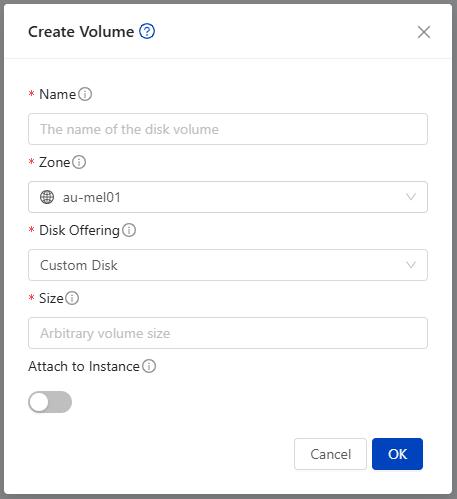
From Storage → Volumes → Create Volume, choose a disk offering (size and performance tier) and the zone it should live in. Once created, attach it to a running or stopped VM; on Linux, you'll typically need to partition, format and mount the new disk from within the guest OS before it's usable.
The number of data volumes you can attach to a single VM is typically 6. If you need more independent disks than that, consider a shared filesystem instead.
Resizing a volume
Data volumes can be resized upward from the portal without recreating them. After resizing, you'll usually still need to grow the filesystem inside the guest OS to make the additional space usable (e.g. with growpart and a filesystem-specific resize command on Linux).
Resize targets are constrained to the sizes defined by the disk offering you're on, unless it's a custom-sized offering. If you need a size outside what your current offering allows, moving the volume to a different disk offering may be required.
Volume snapshots
Volume snapshots capture a point-in-time copy of a single disk, backed up to secondary storage. They're useful for protecting data volumes independently of the VM they're attached to, and can be used to create a new volume elsewhere. This is different from an instance snapshot, which captures an entire VM - see Instance and volume snapshots for a full comparison of the two.
Volume snapshots are managed under the Storage menu against the volume itself, not on the instance - this is different from instance snapshots, which are listed on the instance. You can take one on demand from the volume's detail page, or rather than taking snapshots manually, set a recurring snapshot policy on a volume - hourly, daily, weekly or monthly - along with how many snapshots to retain. Once the retention count is reached, the oldest snapshot is dropped as a new one is taken. A scheduled snapshot is skipped if the volume hasn't changed since the last one, so you won't accumulate identical copies of an idle disk.
Uploading an existing volume
If you have a disk image from outside Lightspeed Cloud, you can upload it directly as a volume and attach it to a VM, rather than starting from a blank disk.
Shared filesystems
Shared filesystems provide a network-mounted filesystem that multiple VMs can mount and access at the same time - useful for shared application state, a common data directory across a cluster of instances, or any workload that needs concurrent access to the same files rather than a volume attached to a single VM.
Creating a shared filesystem
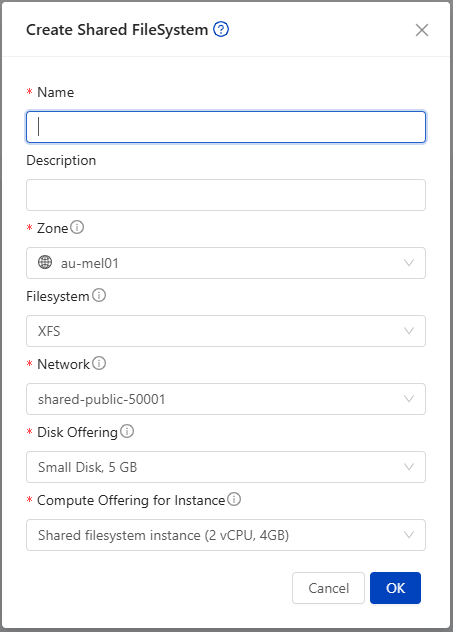
From Storage → Shared Filesystems → Create Filesystem, you'll need to choose:
- A filesystem type - either XFS or EXT4.
- A disk offering - determines the size and performance tier of the underlying storage.
- A compute offering - shared filesystems are served by a small dedicated compute instance that runs in the background, so a compute offering must be selected for it to run on.
Once created, the filesystem can be mounted from any VM with network access to it, using the standard NFS mount options for your guest OS.
Object storage
Object storage buckets provide S3-compatible storage for things like backups, media files, or static website assets, accessible via the standard S3 API alongside the portal UI.
Creating a bucket
From Storage → Object Storage, create a new bucket and choose a name and quota. You'll be given access keys to use with any S3-compatible client or SDK.
Managing bucket lifecycle
Buckets can be resized, have their access keys rotated, or be deleted once no longer needed. As with volumes, deleting a bucket permanently removes its contents, so make sure anything important is copied elsewhere first.